
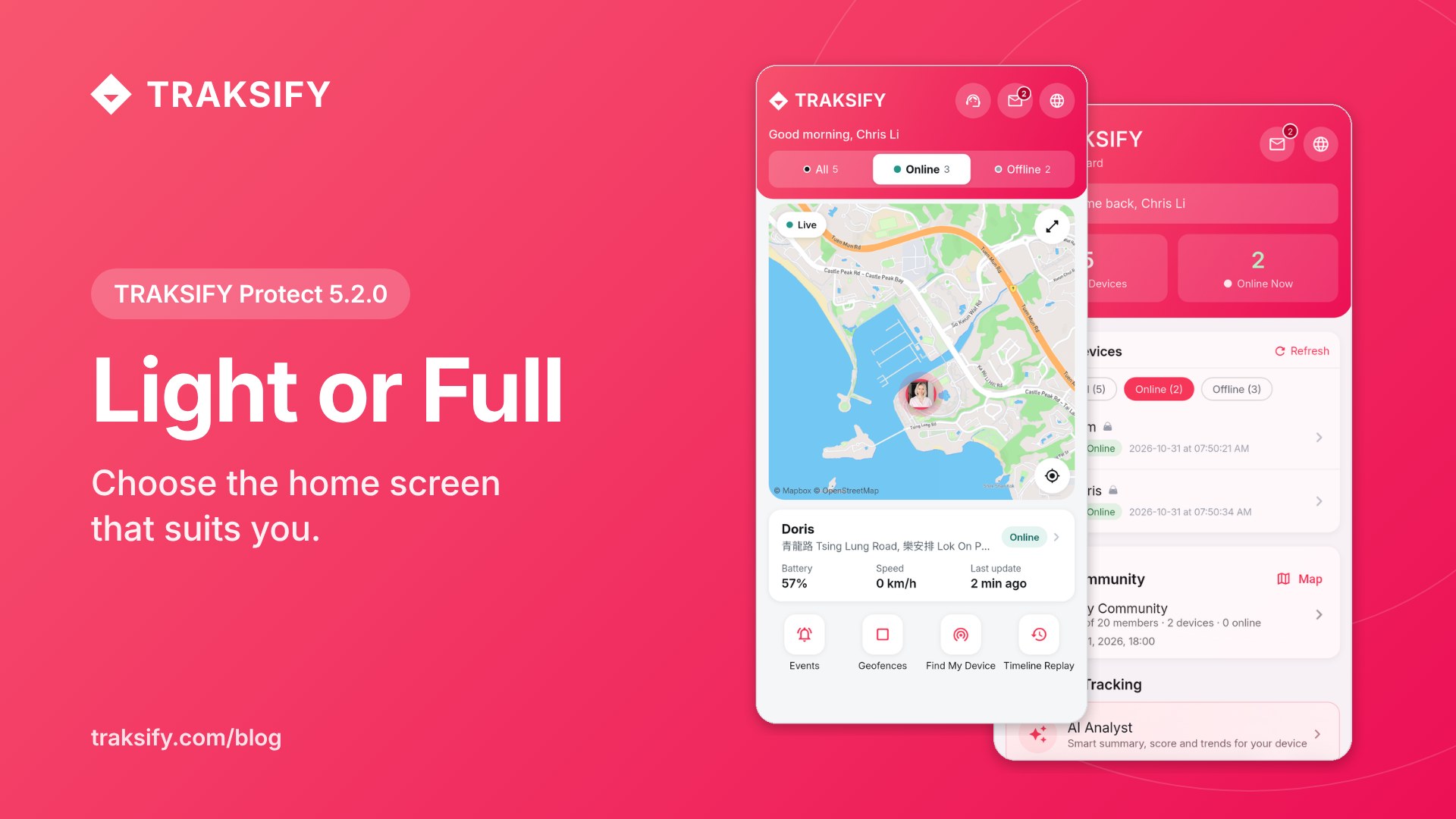
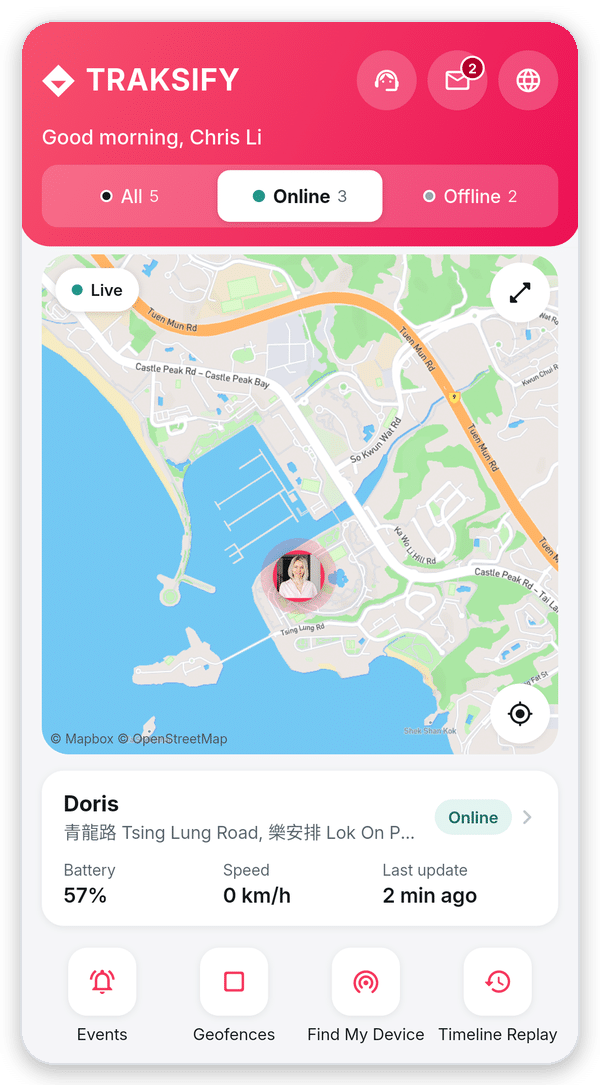
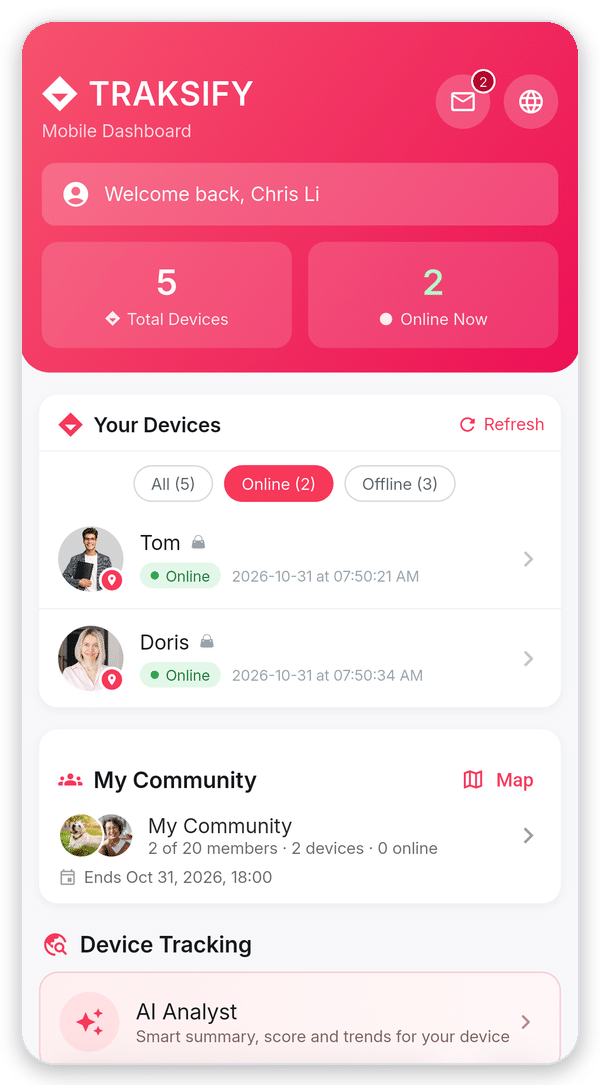
TRAKSIFY Protect 5.2.0 gives you a choice of home screen. The new Light dashboard shows your devices, a live map and the essentials on one calm screen. The Full dashboard you know is still there, with every tool and statistic. You choose, and you can switch at any time.
Why a Light dashboard?
- See what matters at a glance. Where your devices are, whether they are online and how much battery they have, without scrolling.
- The map comes first. Tap a device in the row at the top and the map moves straight to it. An offline device shows its last known position.
- Your own shortcuts. Pick up to four quick actions, such as Events, Geofences, Find My Device or Share.
- Help is one tap away. Support chat, messages and language sit right in the header.
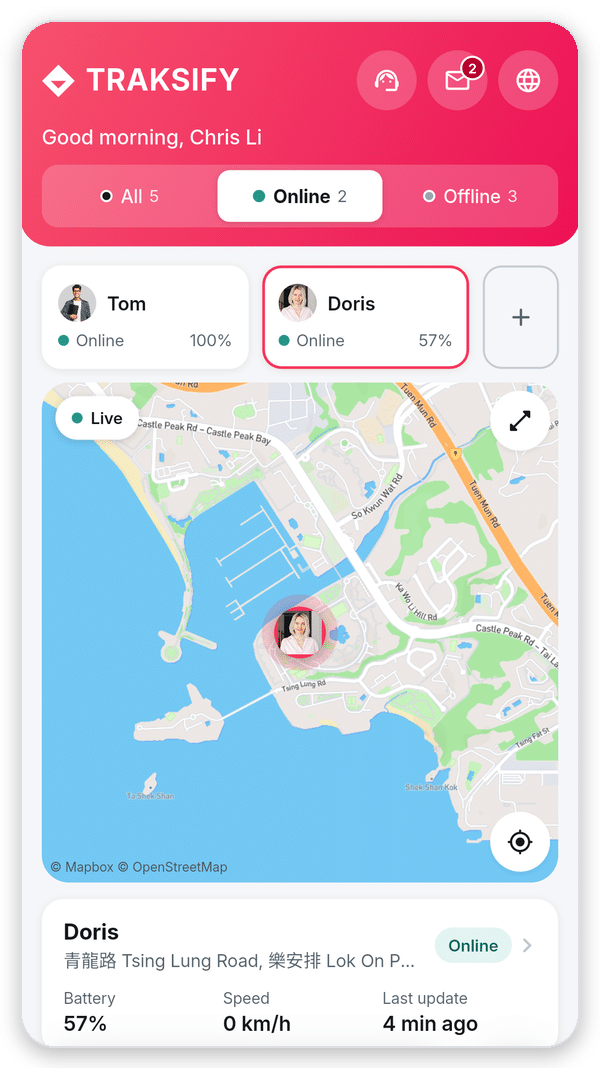
- More room to see. The bottom menu slides away while you scroll and comes back when you scroll up.
How to switch between Light and Full
Step 1: Open Settings
Tap the round Settings button at the bottom right of the app. If the menu is hidden, scroll up a little and it slides back in.
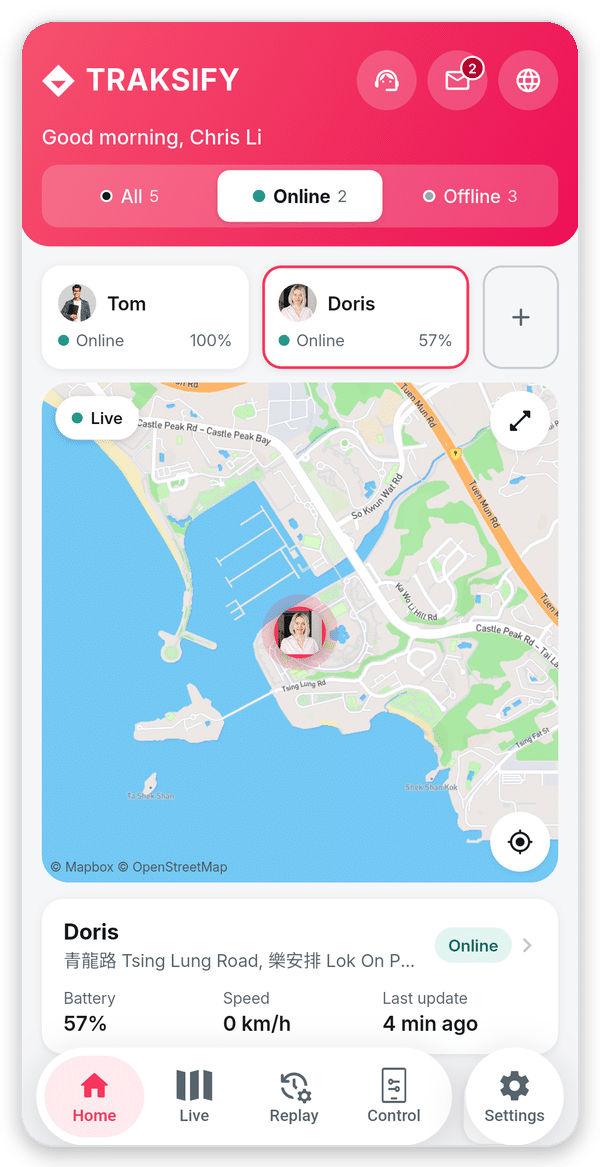
Step 2: Open Phone and Dashboard Preferences
Under Account & App, tap Phone and Dashboard Preferences. The line below it shows which dashboard you are using now.
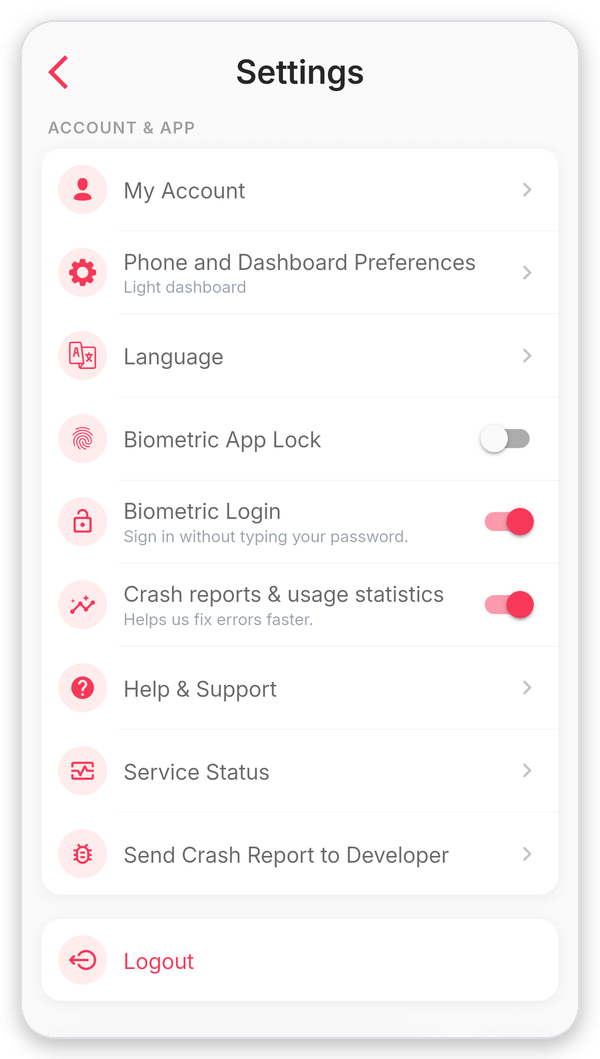
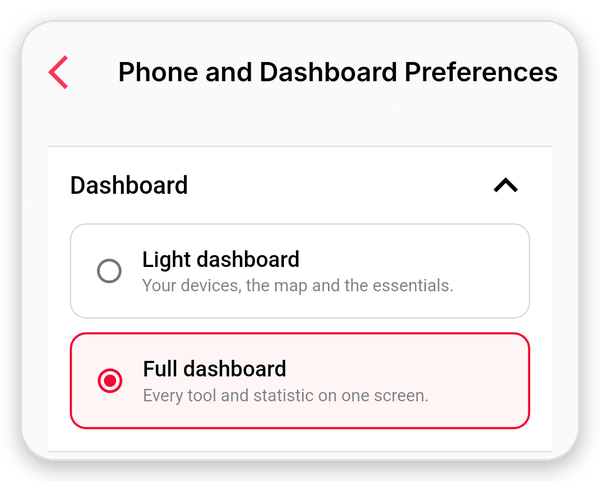
Step 3: Choose Light or Full
At the top, under Dashboard, tap Light dashboard or Full dashboard. A green message confirms the change. Your choice is saved immediately, so there is no need to press Save.
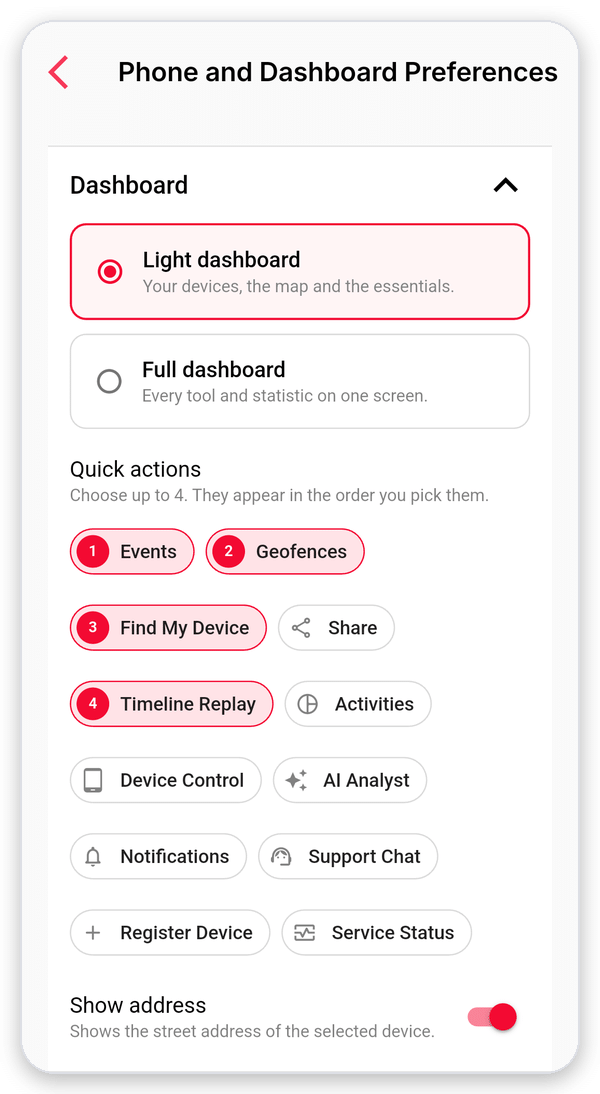
Step 4: Pick your quick actions (Light only)
With Light selected, choose up to four quick actions. The numbers show the order in which they appear on your home screen. Below them, turn Show address on or off for the status card.
Step 5: Go back to Home
Tap Home in the bottom menu. Your new dashboard is ready. To change back, simply repeat steps 1 to 3.
Good to know
- If you already used TRAKSIFY Protect before 5.2.0, you keep the Full dashboard. New users start with Light.
- Your choice is saved on your phone. If you use TRAKSIFY on more than one phone, choose on each of them.
- Both dashboards show the same devices and update automatically every 30 seconds. Nothing changes for your alerts, geofences or reports.
- Press and hold a device in the Light dashboard to open its profile. Tapping the status card does the same.
Update to TRAKSIFY Protect 5.2.0 from the App Store or Google Play. See everything that changed in the release history.