
One live map for your group, for as long as you need it.
A Private Community lets a group of TRAKSIFY users share their device locations with each other for a while. Everyone sees the same map, gets warned when someone falls behind, and is alerted at once if anyone raises an SOS or has a fall.
- Weekend hike
- Dog walk with friends
- Family day out
- School trip
- Cycling tour
- Motorcycle convoy
- Sailing trip
- Festival crew
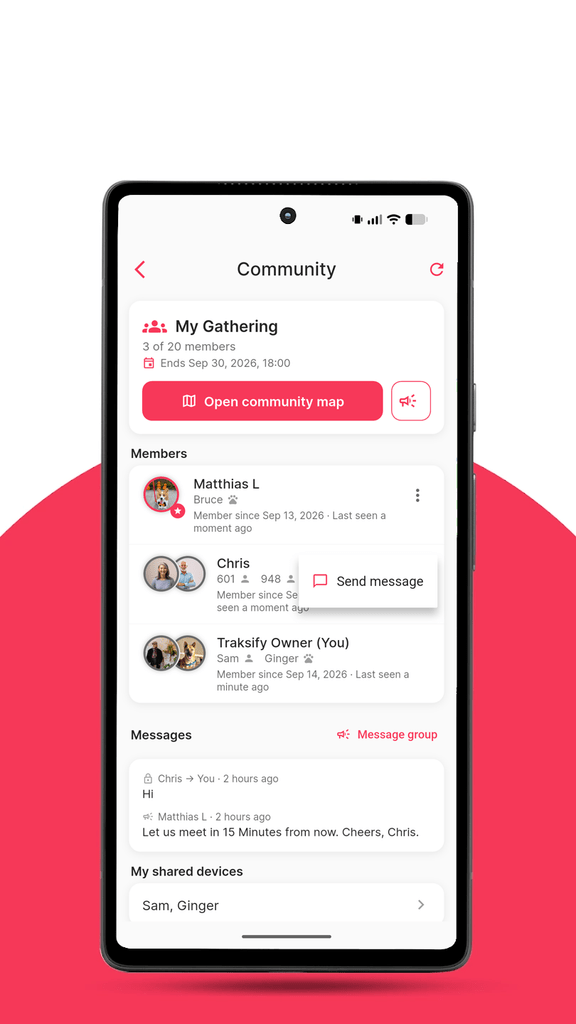
Owner, admin and member.
The owner organises the community and can appoint admins to help.
| Action | Owner | Admin | Member |
|---|---|---|---|
| Sees all shared devices on the map | |||
| Receives proximity, separation, SOS and fall alerts | |||
| Sends messages to one member or the group | |||
| Chooses own devices to share (max. 2) | |||
| Pauses own sharing | |||
| Resets an SOS or fall alarm | own devices | ||
| Invites and removes members | |||
| Edits name, description, rules, end date and join distance | |||
| Appoints admins | |||
| Hands the community to another member | |||
| Closes the community | |||
| Leaves the community |
From the first invite to the last kilometre.
Set it up
For the organiser- 1
Open the Community screen
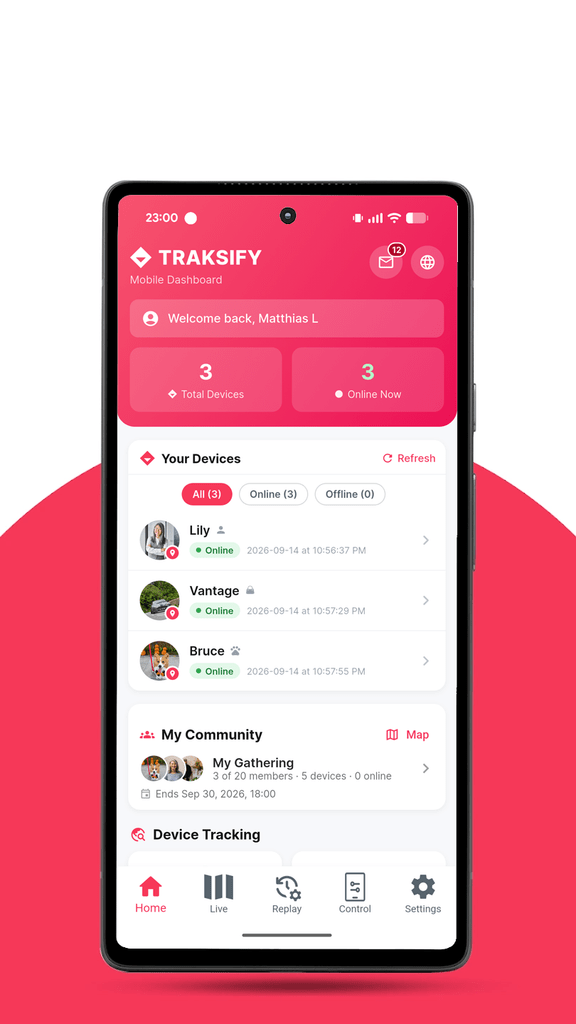
Go to Settings → Community, or tap the My Community card on the Home screen. If you’re not in a community yet, you’ll see a short introduction, a Create community button and your Community invitations, with a badge if someone has invited you.
- 2
Create a community
- Tap Create community.
- Enter a name, for example Tai Mo Shan hike. If you leave it empty, the community is shown under your name.
- Choose one or two of your devices to share.
- Set an end date if you know when the activity finishes. Everyone is reminded the day before, and the community closes itself then. You can also add it later.
- Tap Create. You’ll get a confirmation email.
- 3
Add a description and rules Optional
In the About this community card, tap Edit to add a description (purpose, dates, meeting point) and rules, one per line, such as Keep location sharing on during the hike. Members see both, and invitees see the description before they accept.
As owner you can also set the maximum join distance: how far from your nearest device a new member’s device may be, from 100 m up to 20,000 km. The default is 1,000 km.
- 4
Invite people
- Tap Invite next to Members.
- Enter the person’s email address and tap Send.
Existing TRAKSIFY users get a push notification and an email. People without an account get an email explaining how to install the app, register with that same address, add a device and accept. Invitations expire after 7 days; tap ✕ next to a pending invitation to withdraw it.
Join
For invited members- 5
Accept an invitation
- Open the notification, or go to Settings → Community → Community invitations.
- Read the description and tap Accept or Decline.
- Choose up to two devices to share and tap Join.
The devices you share need a position from the last 7 days and must be within the community’s join distance. Any other pending invitations are declined automatically, because you can be in one community at a time.
On the move
For everyone- 6
Use the community map
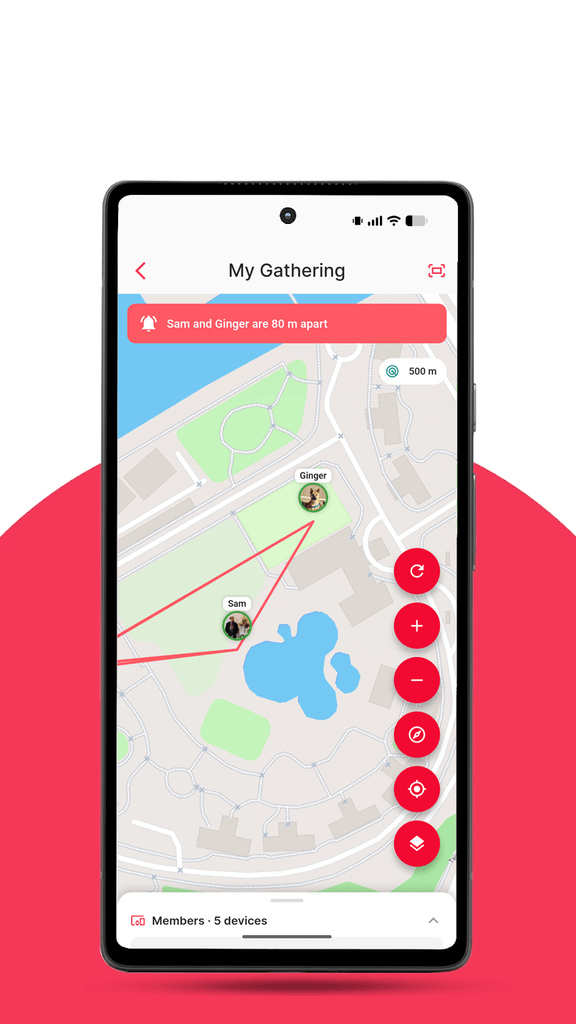
Tap Open community map to see:
- every shared device with its photo or type icon, and a colour per member;
- a member list at the bottom: drag it up for battery, speed and last update, search, or tap a row to centre the map;
- map controls for refresh, zoom, north-up, your location and map style;
- a red line and a banner when two devices are within your alert distance;
- a pulsing red SOS or orange fall badge on any device that raised an alarm in the last 30 minutes, listed first.
The map refreshes every 10 seconds while it’s open.
- 7
Set up your alerts
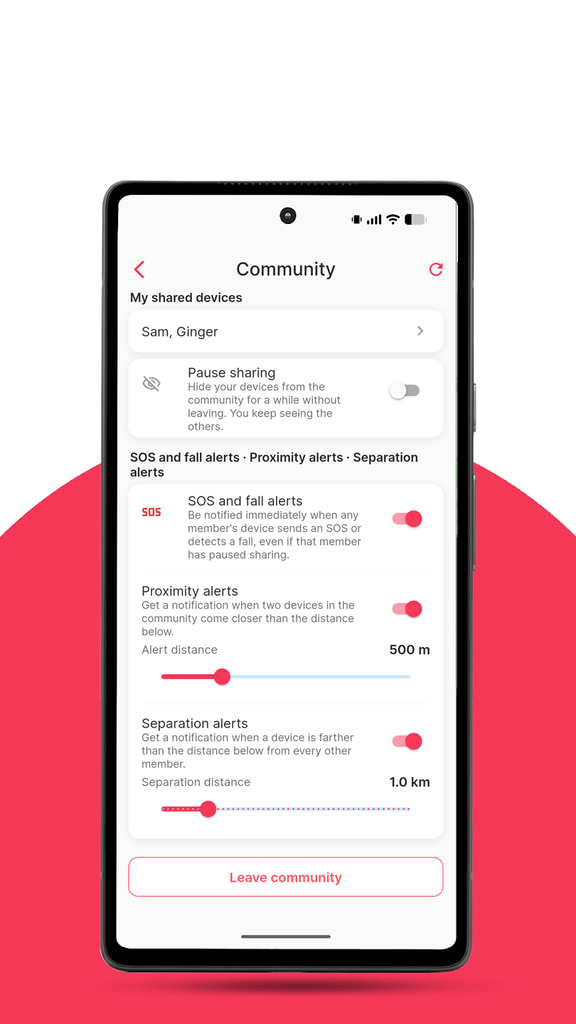
On the Community screen, choose which alerts you want and at what distance. The three types are explained below.
- 8
Respond to an SOS or fall
Open the alert: the map centres on the device and shows the person’s name. Contact them or go to them. Once they’re safe, tap Reset alarm on their row or on the alert banner so the badge disappears for everyone. The device’s owner, the community owner and admins can reset it, and members are told who did. Otherwise the badge fades after 30 minutes.
- 9
Send messages
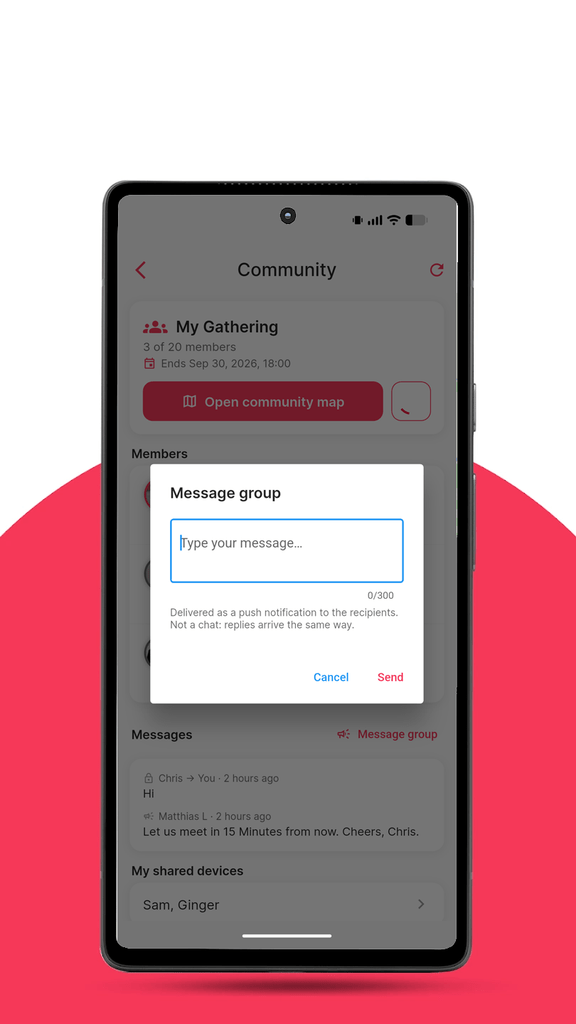
- To everyone: tap the megaphone next to Open community map, or Message group on the Messages card.
- To one member: tap ⋮ on their row and choose Send message.
Messages arrive as push notifications of up to 300 characters. They’re not a chat; a reply comes back the same way. The Messages card keeps the latest ones so you can read them again.
Your controls
For everyone- 10
Change which devices you share
Tap My shared devices to add or remove devices at any time. At least one must stay shared, and two at most.
- 11
Pause sharing
Switch on Pause sharing to disappear from the map for a while without leaving. Your devices are hidden and left out of distance alerts, but you still see everyone. Others see a small Paused label next to your name.
Exception: an SOS or fall from a paused device is still sent to the group, with its position. Pausing means “don’t track me”, not “don’t help me”.
Manage and end
For the owner, and members leaving- 12
Manage members
Tap ⋮ on a member’s row:
- Send message, available to everyone.
- Make admin lets that person invite and remove members and reset alarms.
- Make owner hands the community over. You stay on as a member.
- Remove takes the member out. They are notified.
- 13
When a community ends
- Leave (member): tap Leave community. Your sharing stops at once and the owner is told.
- Close (owner): tap Close community. Everyone is released and notified by push and email.
- Scheduled end: with an end date, everyone is reminded 24 hours before and it closes itself.
- Automatic close: after 30 days with no position from any shared device, so nobody keeps sharing by accident.
Once a community has ended, anyone can start a new one straight away.
Three alerts that keep the group together.
Each member sets their own distances and gets their own notifications, even when the app is closed.
SOS and fall
You’re alerted immediately, with the alarm sound, when any member’s device sends an SOS or detects a fall, even if that member has paused sharing. The alert opens the map on the device.
Proximity
When any two devices come closer than your alert distance. Handy for meeting points, or to know a child or dog has reached a friend.
Separation
When a device is farther than your separation distance from every other member: someone has fallen behind or wandered off.
To avoid a flood of messages, the same pair or device is reported at most every 5 minutes (proximity) or 10 minutes (separation), and only again after it has moved apart or rejoined. Distances and speeds follow your metric or imperial setting.
Make the day run smoothly.
- Set the end date when you create the community, so sharing stops when the activity does.
- Invite a few days ahead, so people new to TRAKSIFY have time to install the app and register.
- Put the meeting point and an emergency number in the description.
- Match the separation distance to the activity: 300–500 m for a hike, 1–2 km for cycling.
- Use group messages for what you’d otherwise shout: “Break at the waterfall”, “Bus leaves at 16:30”.
- Parents and teachers: share only the children’s trackers and keep your own phone paused. You’ll still see everyone.
Private by design.
- Positions are shared only with members, only from the devices you chose, and only while the community is active and you’re not paused. SOS and fall are the one exception.
- Nobody outside the community can see your devices, including people who were invited but haven’t accepted.
- Leaving, being removed, pausing or the community ending all stop sharing immediately.
- The community map shows current positions only. Nobody can see your history.
- Private messages are visible only to the sender and the recipient.
- Device numbers are never shown in full, only a name or the last 6 digits.
Frequently asked questions.
I was invited but don’t see the invitation.
Make sure you’re signed in with the same email address the invitation was sent to, and that you have at least one device registered. Then open Settings → Community → Community invitations and pull down to refresh. Invitations expire after 7 days, so ask the organiser for a new one if needed.
Why can’t I join with my device?
A shared device needs a position from the last 7 days, and it must be within the community’s maximum join distance from the owner’s nearest device. Switch the device on outdoors so it reports a position, or ask the owner to increase the join distance.
Can I be in two communities?
No. Leave or close the current one first.
I don’t get alert notifications.
Check that notifications are allowed for TRAKSIFY Protect in your phone settings, that the relevant switch is on in the Community screen, and that the devices are reporting positions. A device that hasn’t updated for 10 minutes is left out of distance checks.
How do I clear an SOS or fall badge?
Tap Reset alarm on the device’s row in the map’s member list. The device’s owner, the community owner and admins can do this. Everyone else sees the badge until it’s reset or 30 minutes have passed.
Are messages a chat?
No. A message is a push notification with text. The recipient can answer with a message of their own, and the latest messages are listed on the Community screen, but there’s no live conversation view.
Why does a device show “No position yet”?
It’s shared with the community but hasn’t sent a position yet, or its owner has just added it. It appears on the map with the next update.
Can I share more than two devices?
No, each member can share up to two. Choose the ones that matter for the activity.
Do members see my full device list?
No, only the devices you chose to share.
What if the organiser stops using the app?
Members can leave at any time, and the community closes automatically after 30 days without position updates. The organiser can also hand it over with Make owner beforehand.
Is there a cost?
No. Private Community is included in TRAKSIFY Protect.